90MB/s Card Reader - heyday™ Black: USB & USB-C Connectivity
$19.99
In Stock
Eligible for registries and wish lists
About this item
Additional product information and recommendations
Discover more options
- $7.49reg $9.99 Sale
Frequently bought together
Guests also viewed
- $32.95reg $58.99 Sale
- $35.95reg $54.99 Sale
Related Categories
Guests are saying
The media card reader has received positive feedback for its simplicity and effectiveness, making it an essential tool for guests who need to transfer files from various memory cards. Its compatibility with both SD and micro SD cards, along with USB A and USB C connections, enhances its versatility. Many guests appreciate its ease of use and the ability to delete files directly from the reader, making it a valuable addition for photographers and tech enthusiasts alike.
Summary created by AI from text of reviews reflecting recent feedback provided across different star ratings (includes incentivized reviews)
4.6 out of 5 stars with 90 reviews
quality: 3.8 out of 5
value: 3.6 out of 5
86% would recommend
22 recommendations
5 out of 5 stars
18 March, 2026Verified purchase
(no review title)
So simple and effective!
1 reply from the Product Manufacturer team - 2 months ago
Hi Alexus, thank you for your feedback. We’re glad to hear it’s been simple and effective for you and appreciate you sharing your experience. Please feel free to reach out to Target Guest Services at guest.service@target.com for further assistance.
5 out of 5 stars
Thumbs up graphic, would recommend
27 December, 2025Verified purchase
Great!
Works great! Simple and easy to use.
1 reply from the Product Manufacturer team - 3 months ago
Hi Brian, thank you for your review. We’re so glad to hear the card reader has been working great for you and that it’s simple and easy to use. That straightforward, plug-and-go experience is exactly what we aim for. Please feel free to reach out to Target Guest Services at guest.service@target.com for further assistance.
5 out of 5 stars
30 November, 2025
(no review title)
Excellent all the way!! Exactly what I needed to get the music playing for the family Thanksgiving event!
1 reply from the Product Manufacturer team - 5 months ago
Hello, thanks for your honest review. We're excited to hear that you are enjoying your recent purchase!
1 out of 5 stars
Thumbs down graphic, would not recommend
22 November, 2025
(no review title)
Did not work on my Mac at all I just kept getting the pop up to either allow or not allow to launch
1 reply from the Product Manufacturer team - 6 months ago
Hello! Thank you for reviewing our product. We apologize that it would not work with your Mac. For further assistance, please reach out to Target Guest Services at guest.service@target.com.
5 out of 5 stars
3 November, 2025Verified purchase
(no review title)
Nice. Small
1 reply from the Product Manufacturer team - 3 months ago
Hey Kaiya, thanks for leaving a review! We’re glad the card reader is working well and that its compact size is hitting the mark. Please feel free to reach out to Target Guest Services at guest.service@target.com for further assistance.
5 out of 5 stars
Thumbs up graphic, would recommend
8 September, 2025Verified purchase
Card reader
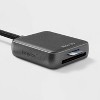
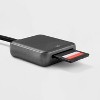
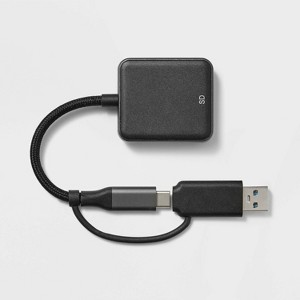
Has sd and micro sd slots, as well as usb - a and usb - c connection.
1 reply from the Product Manufacturer team - 3 months ago
Hi ddose87, it’s great that you can use multiple card types with this reader. That versatility makes transferring files so much easier.
5 out of 5 stars
Thumbs up graphic, would recommend
7 July, 2025Verified purchase
Amazing!
Finally works and is seamless works with phone too
1 reply from the Product Manufacturer team - 10 months ago
Happy to hear it’s working seamlessly for you—thank you for the great feedback!
1 out of 5 stars
Thumbs down graphic, would not recommend
23 April, 2025
BUY AT YOUR OWN RISK
Terrible deleted my files wouldn’t open
1 reply from the Product Manufacturer team - 1 year ago
Hello, thanks for taking the time to leave a review. We're sorry to hear about your experience, that definitely sounds frustrating. Your feedback is appreciated as we continue to look for ways to improve. Please feel free to reach out to Target Guest Services at guest.service@target.com for further assistance.
5 out of 5 stars
Thumbs up graphic, would recommend
25 November, 2024Verified purchase
Amazing!
I was looking for an adapter that wasn’t going to break the bank and this one was perfect, I don’t know why someone said it wasn’t compatible with iPhone, but it worked perfectly for mine maybe if you have the iPhone 14 or lower it won’t work bc it’s USB-C
1 reply from the Product Manufacturer team - 1 year ago
Hello, thank you for your honest review. We're glad to hear the 90MB/s Card Reader is working well with your iPhone! Your feedback means a lot to us, and we’re always looking to make our products even better.
5 out of 5 stars
Thumbs up graphic, would recommend
15 November, 2024Verified purchase
Love this!
I've been needing to get a card reader for a while so I could be able to view my pictures. Very easy to use!
5 out of 5 stars
Thumbs up graphic, would recommend
18 August, 2024Verified purchase
Fantastic!
Great for photographers! Has both small and and regular sd slots as well as usb and usb-c abilities (great for those who are sometimes on mac and sometimes on desktop) there are definitely cheaper ones but I think this one has a lot of variety
1 reply from the Product Manufacturer team - 2 years ago
Hello, thanks for your honest review. We're excited to hear that you are enjoying your recent purchase!
1 out of 5 stars
Thumbs down graphic, would not recommend
29 July, 2024Verified purchase
Don't buy it for iphone
Doesn’t work with iPhone
5 out of 5 stars
Thumbs up graphic, would recommend
2 July, 2024Verified purchase
Works great!
Great universal card reader for the price!
1 reply from the Product Manufacturer team - 2 years ago
Hello, thanks for your honest review. We're excited to hear that you are enjoying your recent purchase!
5 out of 5 stars
Thumbs up graphic, would recommend
21 March, 2024
Neat little gadget!
This is a very useful little gadget! My son can use this to transfer his files from his micro SD card to his computer seamlessly. He loves it! I can see this becoming essential for him because he has a bunch of electronics and games he can hook this up to. Now we have this reader, we probably can’t live without it!
1 reply from the Product Manufacturer team - 2 years ago
Hello, thank you for your honest review! We're happy to hear that you are enjoying your recent purchase. We value your input and are always striving to improve our products. Please feel free to reach out to us at customersupport@gemsfindyours.com for future support.
4 out of 5 stars
Thumbs up graphic, would recommend
21 March, 2024
Awesome, multifunctional device.
I received this product as a member of the Hey Bullseye program in exchange for my honest review. This little gadget is awesome! I love that it is able to be used to read both SIM cards and camera cards. I just updated my iPad and could zip in the SIM card to check for duplicates on my phone and upload the ones that weren’t. I haven’t used another product similar so can’t speak about the advantages of one over the other. However, I’ve always been eased with the Hey Dey brand.
5 out of 5 stars
Thumbs up graphic, would recommend
11 March, 2024
Convenient
I have been looking for a more convenient way to transport pictures and free more memory and I finally bumped into this. It’s super simple to use and I liked it. It only had one downside that it was a little slow but I am lot sure if it’s because I had so many pictures at the same time. Still, I like it because i was able to store all of the memories in one card.
5 out of 5 stars
Thumbs up graphic, would recommend
8 March, 2024
Perfect!
For some reason my new laptop didn’t come with a spot for a micro SD card. I have a camera that uses one, so this attachment is really useful. Now I can easily upload pictures from my camera again. I put the card in and attach it through the USB plug. It also has a C attachment.
1 reply from the Product Manufacturer team - 2 years ago
Hello, thank you for your honest review! We're happy to hear that you are enjoying your new card reader. We value your input and are always striving to improve our products. Please feel free to reach out to us at customersupport@gemsfindyours.com for future support.
5 out of 5 stars
Thumbs up graphic, would recommend
5 March, 2024
Nice
This is a easy to use media card reader. It has the usb and usc ports to plug in and very simplified product. This makes it super easy to download pictures to my laptop and it's small to store easily.
5 out of 5 stars
Thumbs up graphic, would recommend
4 March, 2024
Great Little Device that WORKS!!!
This 'heyday' media card reader is an amazing little device. It has 2 options to connect to your computer a USB-C and a USB-A adapter which is helpful if your computer only has one of those options. I love that this one media card reader can read both a micro SD card or a standard SD card. I love that I am able to delete individual files on the reader without having to transfer the files to my computer first. This card reader has up to a 90 MB's read/write speed which is pretty good. Overall I highly recommend the 'heyday' media card reader for anyone looking for a device to transfer content from a SD type of card.
1 reply from the Product Manufacturer team - 2 years ago
Hello, thank you for your honest review! We're happy to hear that you are enjoying your new card reader. We value your input and are always striving to improve our products. Please feel free to reach out to us at customersupport@gemsfindyours.com for future support.
5 out of 5 stars
Thumbs up graphic, would recommend
1 March, 2024
Awesome device
This is amazing. The new Samsung devices do not have a memory card slot and this allowed me to quickly move pictures over from my memory card. I love that is has a USB and USBC option. The transfer speed it great.
1 reply from the Product Manufacturer team - 2 years ago
Hello, thank you for your honest review! We're happy to hear that you are enjoying your new card reader! We value your input and are always striving to improve our products. Please feel free to reach out to us at customersupport@gemsfindyours.com for future support.